
Create a generic SIP connection
Use the generic option when your provider is not one of the vendors Live Hub is pre-integrated with. If yours is listed, follow its interop guide instead, because it asks for far fewer settings.
The generic options expose every parameter, so they assume you are comfortable with SIP and Voice-over-IP. Contact AudioCodes support if you need help.
The wizard has six tabs. Fill in General first, because the provider type you select there decides which of the other tabs appear. Then work through the remaining tabs in the order they appear, and click Create at the end.
To open the SIP connection wizard:
-
In the Navigation pane, expand Voice channels, and select SIP connections.
-
Click Add new SIP connection.
General
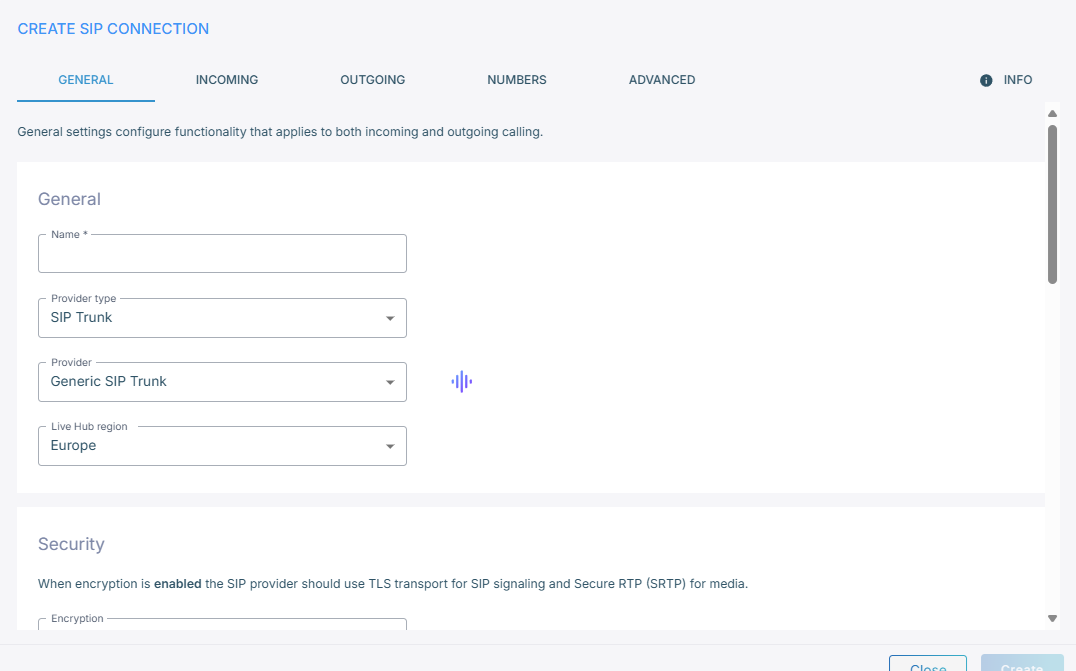
The General tab holds the settings that apply to calls in both directions.
-
In the 'Name' field, enter a name for the connection.
-
From the 'Provider type' drop-down list, select SIP Trunk, Contact Center, or UC Platform.
-
From the 'Provider' drop-down list, select the matching generic option: Generic SIP Trunk, Generic Contact Center, or Generic Unified-Communication Platform.
-
From the 'Live Hub region' drop-down list, select the region your Live Hub voice infrastructure runs in. See Global region support.
-
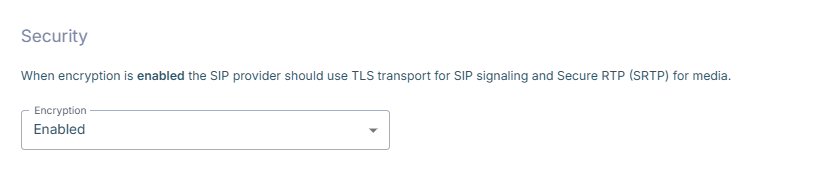
Under Security, from the 'Encryption' drop-down list, select whether to encrypt the connection. Enabling encryption requires the provider to use TLS for SIP signaling and SRTP for media.
-
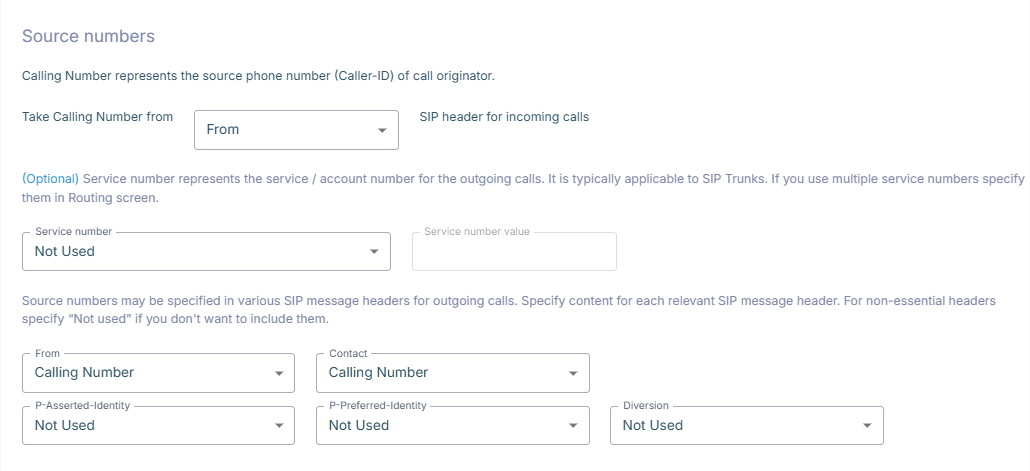
Under Source numbers, decide which SIP headers carry the source number on outgoing calls.
The calling number is the caller's own number, the Caller-ID of whoever originated the call. The service number is your account or service number with the provider, which SIP trunks often expect. If you use more than one, set them on the routing rule instead.
-
From the 'Take Calling Number from' drop-down list, select the header that Live Hub reads the calling number from on incoming calls.
-
From the 'Service number' drop-down list, select whether a service number is used, and then enter it in the 'Service number value' field, which accepts up to 64 alphanumeric characters.
If you leave this at Not used but still name the service number in one of the headers below, validation fails when you click Create.
-
For each of 'From', 'Contact', 'P-Asserted-Identity', 'P-Preferred-Identity', and 'Diversion', select whether it carries the calling number, the service number, or nothing. Set headers you do not need to Not used.
-
-
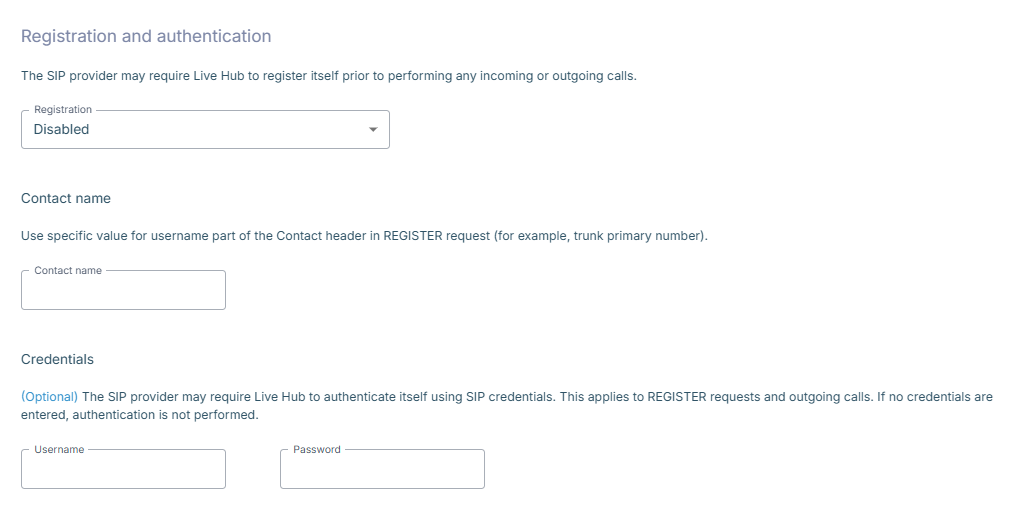
Under Registration and authentication, set up registration if the provider expects Live Hub to register before placing or receiving calls.
-
From the 'Registration' drop-down list, select the registration type.
-
In the 'Contact name' field, enter the value to use for the username part of the Contact header in outgoing SIP messages, for example a trunk's primary number. This works whether or not registration is enabled.
-
Under Credentials, enter the 'Username' and 'Password'. If you leave them empty, Live Hub does not authenticate.
-
Incoming
The Incoming tab determines how Live Hub recognizes calls arriving from the provider as belonging to this connection. Select one or more authentication methods under Authentication.
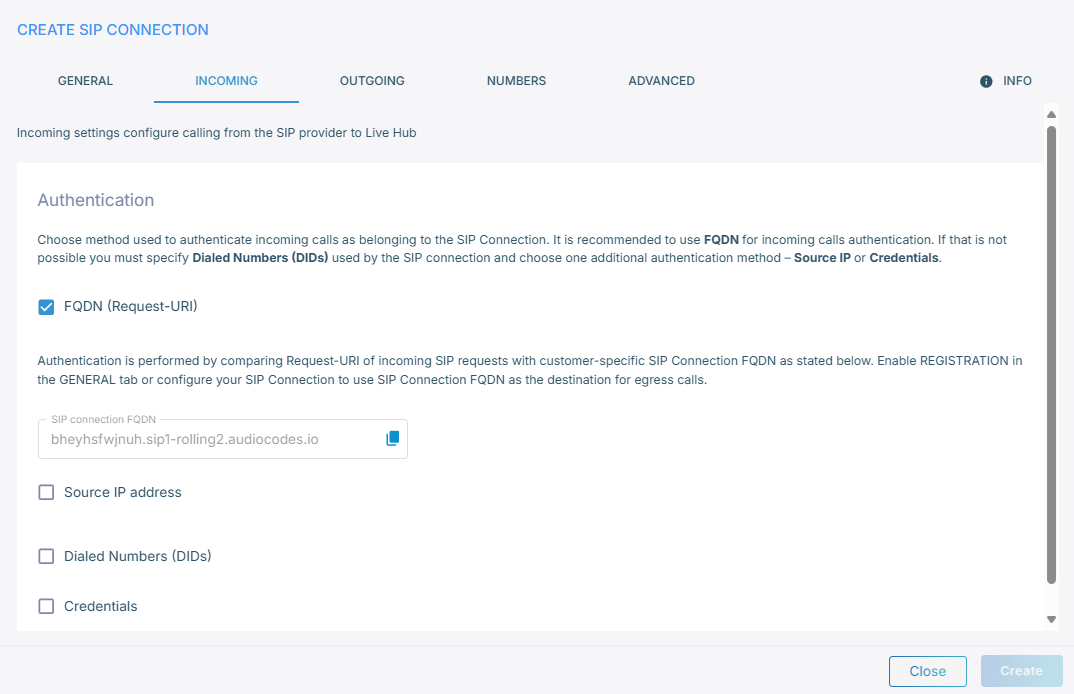
| Method | What it checks |
|---|---|
| 'FQDN (Request-URI)' | The Request-URI against this connection's FQDN, filled in for you and also shown on the Info tab. |
| 'Source IP address' | The source IP of incoming requests against the addresses you set on the Outgoing tab. |
| 'Dialed Numbers (DIDs)' | The dialed number against a list you supply, up to 150 records. |
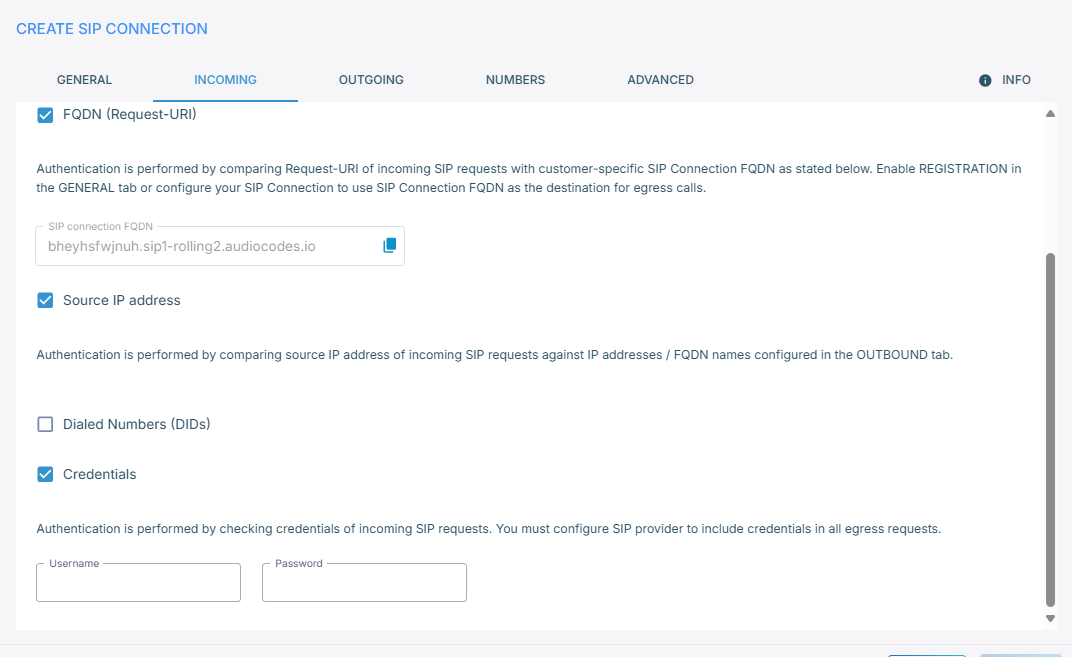
| 'Credentials' | A username and password on the incoming requests. |
Select either 'FQDN (Request-URI)' or 'Dialed Numbers (DIDs)'. If you select 'Dialed Numbers (DIDs)', pair it with 'Source IP address' or 'Credentials'.
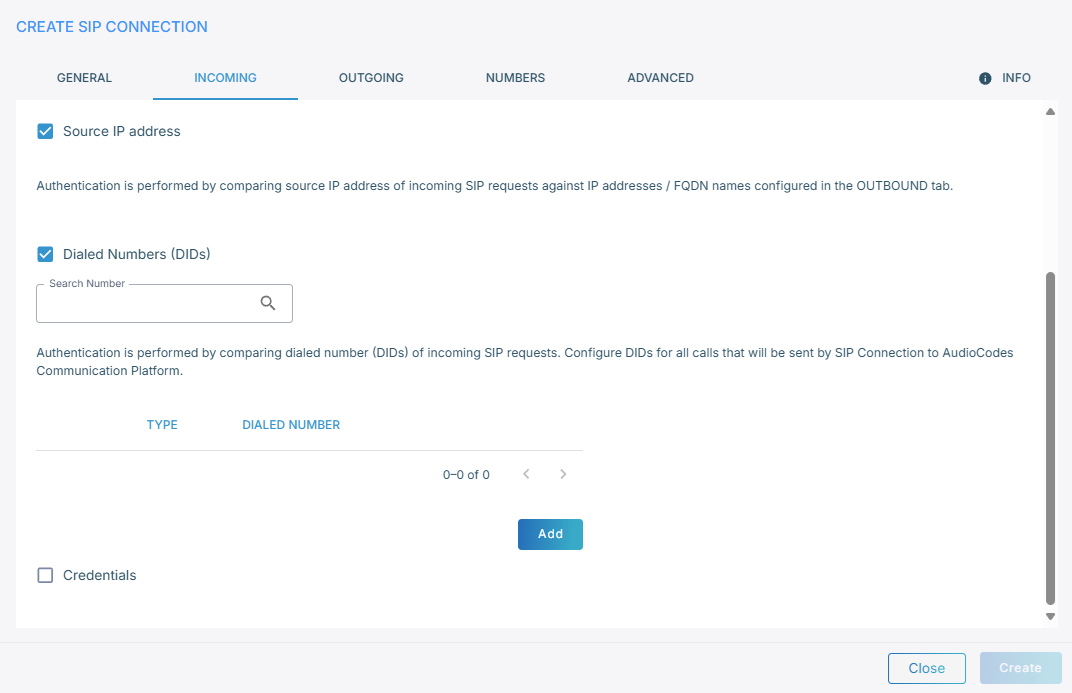
To build the DID list:
-
Click Add.
-
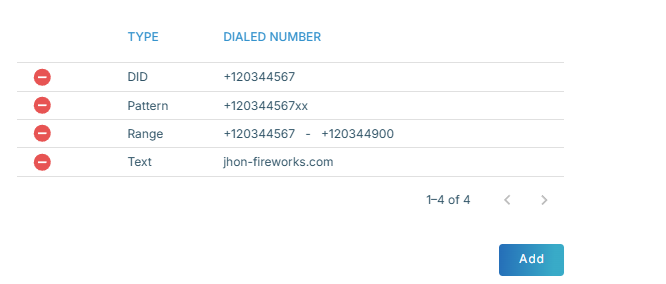
From the 'Type' drop-down list, select DID, Pattern, Range, or Text.
-
In the 'Dialed number' field, enter the number, and then click the add icon
 .
.
With 'Credentials', enter the username and password instead.
Outgoing
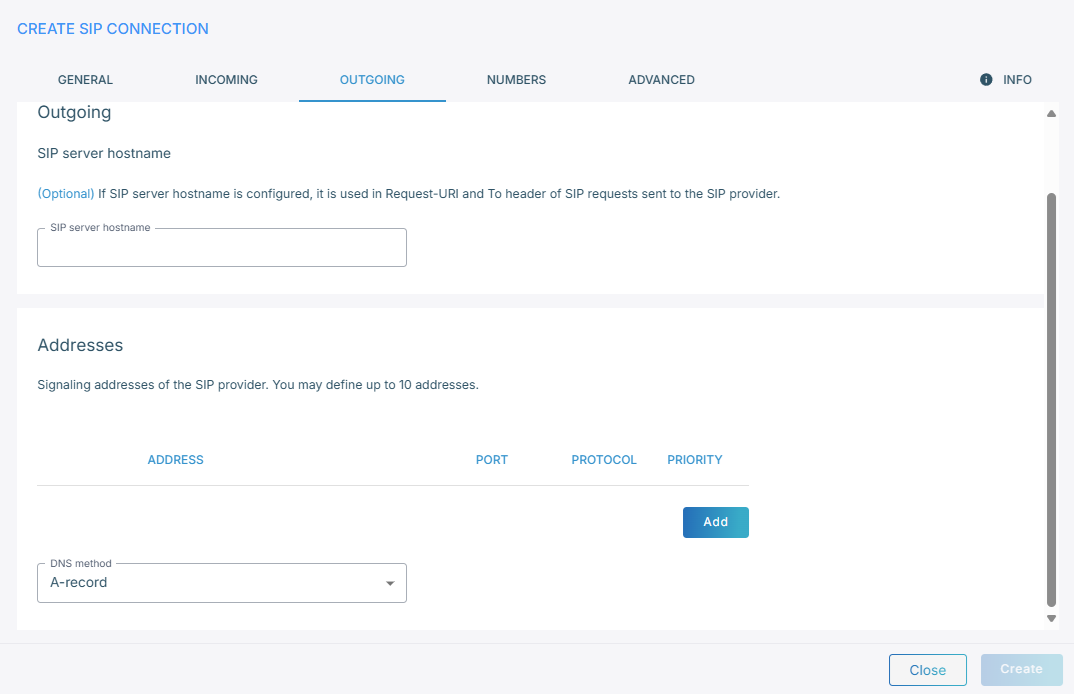
The Outgoing tab defines where Live Hub sends calls going out to the provider.
-
In the 'SIP server hostname' field, enter the provider's SIP server hostname.
-
Under Addresses, click Add, and then select a 'DNS method'. The fields you fill in depend on the method you select:
DNS method Fields A-record 'Address', 'Port', 'Protocol', 'Priority' SRV 'Address', 'Protocol' NAPTR 'Address' Use TCP or TLS where possible. Over UDP, make sure that your SIP messages stay within the 1,500-byte packet limit.
Changing the DNS method empties the addresses table.
Numbers
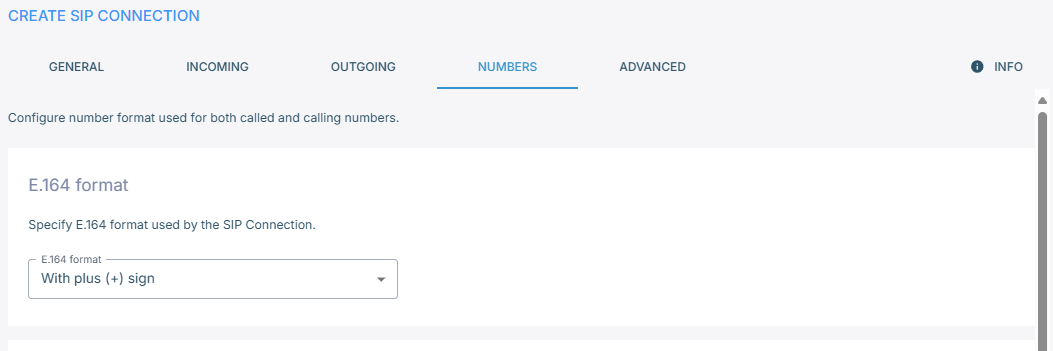
The Numbers tab sets the number format this provider expects, for both called and calling numbers.
-
From the 'E.164 format' drop-down list, select how numbers are written: With plus (+) sign, Without plus (+) sign, Starts with 0, or Starts with 00.
-
From the 'National format' drop-down list, select whether numbers in one country go out in national rather than E.164 format, and then set the country code and national prefix that identify them.
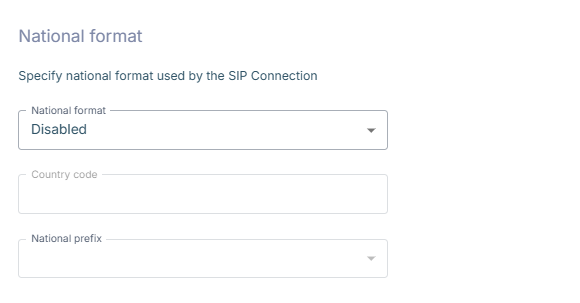
- United States — country code
1, national prefix not used. Dialing+12024561111sends2024561111. - Israel — country code
972, national prefix0. Dialing+97226753333sends026753333.
- United States — country code
Advanced
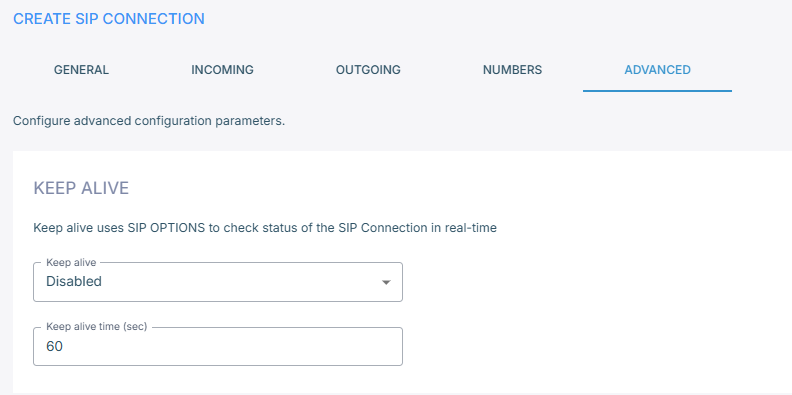
The Advanced tab holds the following groups of settings:
| Group | What to set |
|---|---|
| Keep Alive | Whether Live Hub sends keep-alives, and the 'Keep alive time (sec)'. |
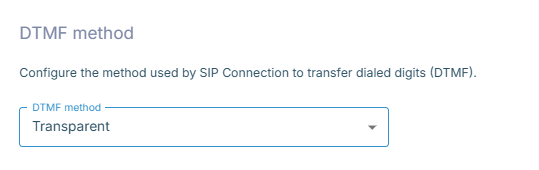
| DTMF method | How DTMF digits are carried. |
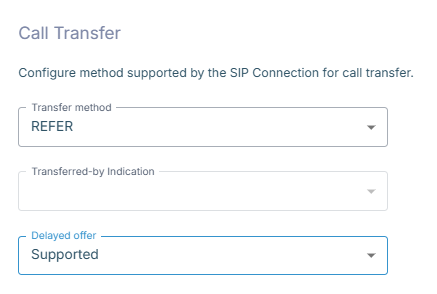
| Call Transfer | The 'Transfer method', 'Transferred-by Indication', and 'Delayed offer', which sets whether the SIP INVITE carries an SDP body. |
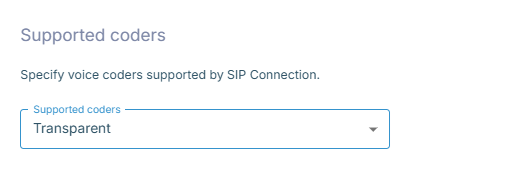
| Supported coders | Which coders the connection may use. |
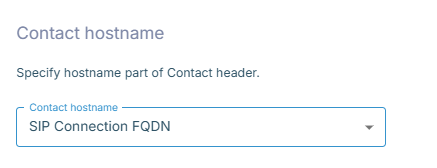
| Contact hostname | What goes in the Contact header's hostname. |
| Max call duration | Minutes, from 0 to 43200. Live Hub ends the call when the time is up. The default, 0, means no limit. |
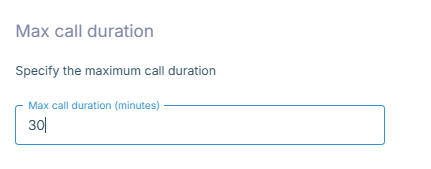
The account's maximum call duration takes precedence. With 30 minutes set on the account and 40 on the connection, calls end at 30. See Configure maximum call duration.
Selecting Enhanced Configuration reveals parameters that are hidden by default: settings for unusual scenarios that most connections never need. Each appears on the tab it belongs to.

Info
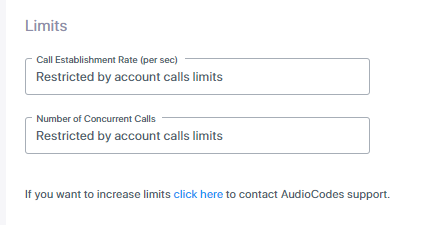
The Info tab shows the values Live Hub assigns to the connection, including its certificate and its call limits.
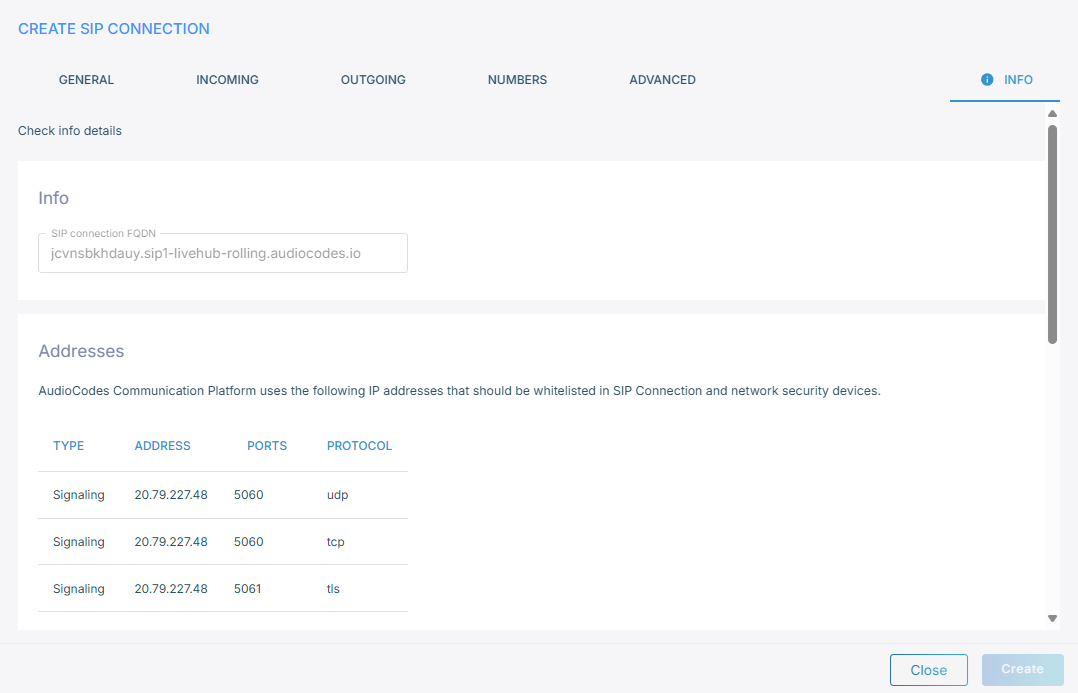
-
Certificate holds the certificate Live Hub presents. Click Download and import it into the provider's trusted CA list.

-
Limits reports the 'Call establishment rate (per sec)' and the 'Number of concurrent calls'. To raise them, click the click here link.
Finally, click Create.
No call passes over the connection until a routing rule joins it to a bot.